# How to Create Professional Mockups for Etsy POD Listings
If you sell print-on-demand products on Etsy — posters, t-shirts, mugs, tote bags, phone cases — your mockups are doing most of the selling. Buyers can't touch your product. They can't hold it up to the light. All they have is what you show them.
And what most POD sellers show them is... not great. A flat design file on a white background. Maybe a basic template with visible distortion. Sometimes just the raw artwork with no context at all.
This guide covers everything you need to create professional-quality mockups that actually convert. No design degree required. No expensive software needed. Just practical steps you can apply today.
Why Mockups Matter More Than You Think
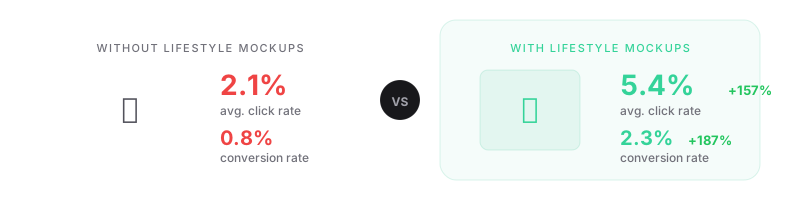
The numbers are clear. Listings with professional mockups consistently outperform those without:
- 30-50% higher click-through rates from Etsy search results, as many sellers report based on their own A/B tests
- Higher perceived value, which supports premium pricing — a poster in a styled room scene feels worth more than a flat JPEG
- Lower return rates, because buyers know exactly what they're getting
- Better thumbnail performance, which is critical since Etsy's grid view shows small images where context matters enormously
Here's the thing most sellers miss: your first listing photo isn't just a product shot. It's an advertisement. It competes against dozens of other thumbnails in search results, and buyers make split-second decisions about which listing to click. A mockup that shows your design in a real-world context wins that split-second battle almost every time.
For print-on-demand specifically, mockups solve a fundamental trust problem. You're selling something that doesn't physically exist yet. The buyer is trusting that what arrives in the mail will look like what they saw online. High-quality mockups bridge that gap.
Types of Mockups Every POD Seller Should Know
Not all mockups serve the same purpose. The best Etsy listings use a mix of these types across their 10 available photo slots.
1. Lifestyle Mockups
A poster hanging above a mid-century modern sofa. A mug on a desk next to a laptop. A t-shirt on someone walking through a city street.
Lifestyle mockups place your design in a realistic setting that helps the buyer imagine owning the product. They are the single most effective mockup type for conversion. Use at least one — ideally your first image — as a lifestyle scene.
Best for: First listing photo (thumbnail), establishing mood and style.
2. Flat Lay / Overhead Mockups
Your product photographed or composited from directly above, often arranged with complementary objects — a pen, a plant, a pair of glasses. Flat lays are clean, professional, and great for showing the full design without perspective distortion.
Best for: Showing the complete design clearly, especially for prints and posters with detailed artwork.
3. Detail / Close-Up Mockups
Zoomed-in shots that highlight texture, print quality, or fine details in the artwork. For posters, this might show the paper grain. For t-shirts, the fabric weave and ink quality.
Best for: Building trust by showing material quality, reassuring buyers about what they'll receive.
4. Scale Mockups
A frame leaning against a wall with a person nearby. A mug held in someone's hand. These mockups answer the question buyers always have: "How big is this, actually?"
Best for: Products where size matters — posters, canvas prints, oversized t-shirts.
5. Multi-Variant Mockups
Show multiple colorways, sizes, or designs together in a single image. This works well as a secondary listing photo and helps buyers see the range of options.
Best for: Listings with variations, showing the collection as a whole.
6. Perspective / Angled Mockups
Your product shown at an angle — a poster slightly tilted, a frame on a shelf viewed from below. Perspective mockups add visual interest and make the listing feel more dynamic than a straight-on shot.
Best for: Adding variety to your photo set, making listings feel less static.
Resolution, Format, and Technical Requirements
Before you create a single mockup, get these fundamentals right.
Resolution
- Minimum 2000px on the shortest side for optimal quality — Etsy recommends this for the best zoom experience, and listings without zoom-enabled images perform measurably worse
- Recommended: 2000x2000px to 3000x3000px — square crops tend to display most consistently across devices
- Your source design: 300 DPI at print size — if your poster is 18x24 inches, your design file should be 5400x7200 pixels minimum
Format
- JPEG for final mockups (smaller file size, fast loading)
- PNG only if you need transparency (rare for final listing photos)
- sRGB color space — Etsy displays in sRGB. If your design is CMYK (for print), convert a copy to sRGB for mockups so colors look correct on screen
Color Considerations
This trips up many POD sellers: the design you send to your print provider may be in CMYK color space (optimized for printing), but your mockups are viewed on screens (RGB). Always create your mockup versions in sRGB. The colors will look slightly different from the printed product — that's normal and expected. What you want to avoid is uploading a CMYK image directly to Etsy, which can result in washed-out, dull-looking thumbnails.
Step-by-Step: Creating Your Mockups
Step 1: Choose the Right Template
Start by matching the template to your product type. A poster mockup should show a frame in a room — not a poster floating in empty space. A mug mockup should show the mug from the angle that best displays your design.
What to look for in a template:
- Realistic lighting and shadows (avoid anything that looks "3D rendered")
- Neutral backgrounds that don't compete with your design
- Correct aspect ratio for your product (a 2:3 poster template for a 2:3 poster, not a square one)
- High enough resolution (the template itself should be at least 2000px wide)
- Commercial license included — this is critical, always verify before using
If you're selling wall art or posters, look for templates that show the frame in a styled room. Interior design aesthetics sell prints. A minimalist Scandinavian room conveys a different buyer than a colorful bohemian space — choose templates that match your target customer.
Step 2: Prepare Your Design File
Before dropping your design into a template, make sure it's ready:
- Export as PNG with transparency if needed, or high-quality JPEG
- Match the template's placeholder dimensions — if the template has a 1500x2100 placeholder area, resize your design to those exact pixels
- Check color accuracy — open your design and the template side by side. Does your design look right against the template's lighting and color tone?
- Flatten any unnecessary layers to keep file sizes manageable
Step 3: Place Your Design in the Template
The method depends on your tool (we'll cover tools below), but the core principles are universal:
- Perspective matching — your design should follow the template's perspective. If the frame is angled, your design should be warped to match. Most mockup tools handle this automatically.
- Lighting consistency — your design should pick up the same highlights and shadows as the rest of the scene. Good mockup tools apply multiply or overlay blending to achieve this.
- Edge quality — zoom in to 100%. Is there a visible gap between your design and the frame? Do the edges look clean? Sloppy edges are the fastest way to make a mockup look fake.
- Shadow integration — if the template has shadows, your design shouldn't look like it's floating above them. It should sit naturally within the scene.
Step 4: Optimize for Etsy's 10 Photo Slots
Etsy gives you 10 photo slots per listing. Use them strategically:
| Slot | Recommended Use |
|---|---|
| 1 | Lifestyle mockup — this is your thumbnail in search results. Make it count. |
| 2 | Flat lay or clean product shot — show the full design clearly |
| 3 | Scale mockup — help buyers understand the size |
| 4 | Detail close-up — show texture, print quality |
| 5 | Alternative lifestyle scene — different room, different context |
| 6 | Multi-variant view — show color options or sizes |
| 7-8 | Additional angles or contexts |
| 9 | Size chart or dimensions graphic |
| 10 | Shipping/packaging info or another lifestyle shot |
The first image is by far the most important. It determines whether buyers click your listing or scroll past it. Spend the most time here. Test different first images and track which ones get more clicks.
Step 5: Maintain Visual Consistency
Your mockups should look like they belong to the same brand. This means:
- Same style of templates across all your listings (or at least within a collection)
- Consistent lighting tone — don't mix warm-toned lifestyle shots with cool-toned flat lays
- Same aspect ratio for all first images — this makes your shop page look clean and professional
- Similar editing style — if you add a slight vignette to one mockup, add it to all of them
Buyers who land on your shop page and see a visually consistent grid are more likely to browse multiple listings. That consistency signals professionalism.
Step 6: A/B Test Your Main Image
The simplest way to test: change your first listing photo and monitor your click-through rate over 7-14 days. Etsy's stats dashboard shows views and visits per listing.
Test one variable at a time:
- Lifestyle vs. flat lay as the thumbnail
- Light background vs. dark background
- Close-up crop vs. full room scene
- With text overlay (e.g., "Best Seller") vs. without
Keep whatever performs better, then test the next variable. Over time, you'll develop an intuition for what your specific audience responds to.
Common Mistakes to Avoid
1. Using obviously fake or low-quality templates. If the lighting is flat, the shadows are wrong, or the perspective doesn't match, buyers notice — even subconsciously. It damages trust.
2. Overcrowding the mockup. The design should be the star. If your room scene has too many decorative objects, too many colors, or too much visual noise, the buyer's eye doesn't know where to look.
3. Ignoring aspect ratio. If your poster is 2:3 and you squeeze it into a 1:1 template, it will look distorted. Always match the template to your product's actual proportions.
4. Using the same single mockup style for all 10 photos. Ten slightly different lifestyle shots of the same poster in the same room is boring. Mix your mockup types — lifestyle, flat lay, detail, scale.
5. Skipping the first-image test. Many sellers set their first image once and never revisit it. Your thumbnail is your most valuable piece of real estate on Etsy. Test it.
6. Not showing scale. For wall art and posters especially, buyers need to understand how large the product will be in their space. Always include at least one mockup with a size reference — furniture, a person, or labeled dimensions.
7. Forgetting mobile. Over 60% of Etsy traffic comes from mobile devices. Your mockup needs to look good at 300px wide, not just on your 27-inch monitor. Check every mockup on your phone before publishing.
Tools That Can Help
There's no single "best" mockup tool — it depends on your volume, budget, and technical skill. Here are the most relevant options for POD sellers in 2026.
Placeit by Envato
The largest mockup template library available, with 19,000+ mockup templates covering virtually every product type.
- Pricing: $14.95/month (unlimited downloads)
- Best for: Sellers who need variety and don't want to learn Photoshop
- How it works: Upload your design, pick a template, download the result. Browser-based, no software needed.
- Limitation: Templates are shared with thousands of other sellers. Your mockups may look similar to competitors' listings.
Kittl
A design tool with AI-powered features and a growing mockup library. Commercial license included on all plans.
- Pricing: Free (limited) to $30/month
- Best for: Sellers who also need to create or modify designs, not just place them in mockups
- Standout feature: AI-assisted design generation can help create variations quickly
Creative Fabrica
Primarily an asset marketplace (fonts, graphics, illustrations), but it also offers mockup templates and bundles useful for POD sellers.
- Pricing: $3.99 to $9/month
- Best for: Sellers who need both design assets and mockup templates in one subscription
- Note: The mockup selection is smaller than Placeit but often more unique
Bulk Mockup (Photoshop Plugin)
A plugin that automates mockup generation inside Adobe Photoshop. Drop in a PSD template, feed it a folder of designs, and it generates hundreds of mockups automatically.
- Pricing: $15/month subscription
- Best for: High-volume sellers with Photoshop skills who need to generate mockups for 50+ designs at once
- Limitation: Requires Photoshop and PSD templates. Steeper learning curve.
Printful Mockup Generator
If you use Printful for fulfillment, their built-in mockup generator is free and decent for basic product shots.
- Pricing: Free (included with Printful)
- Best for: Printful users who need quick, basic mockups without leaving the platform
- Limitation: Limited template variety, and the mockups tend to look generic. Fine for starting out, but you'll likely want to supplement with other tools as you grow.
Dynamic Mockups
Offers API-based mockup generation with Etsy integration, allowing automated mockup creation as part of a larger workflow.
- Pricing: Variable (API-based pricing)
- Best for: Technically savvy sellers or developers building automated listing workflows
- Standout feature: API access means you can integrate mockup generation into your own tools
FluxCrea (Coming Soon)
FluxCrea is building an all-in-one Etsy management platform that includes mockup generation as part of the listing workflow — so you can create mockups, optimize SEO, and manage listings in one place instead of switching between three or four separate tools.
- Status: Currently in development, waitlist open
- Approach: Mockups integrated directly into the listing creation and editing flow, alongside AI-powered title/tag optimization and bulk editing
Frequently Asked Questions
How many mockups should I include per Etsy listing?
Use all 10 photo slots. At minimum, include 5-7 images with a mix of lifestyle, flat lay, and detail mockups. Listings with more photos consistently rank better in Etsy search and convert at higher rates. The cost of creating a few extra mockups is negligible compared to the revenue impact of a higher conversion rate.
Can I use the same mockup template for every listing?
You can, but you shouldn't — at least not for the first image. If every listing in your shop has the same room scene with a different poster, your shop page looks repetitive and buyers experience "template fatigue." Use 3-5 different template styles and rotate them across listings. For secondary images (slots 3-10), some repetition is fine and even helps with brand consistency.
Do I need Photoshop to create professional mockups?
No. Browser-based tools like Placeit and Kittl can produce professional results without any design software. Photoshop gives you more control — especially for batch processing with plugins like Bulk Mockup — but it's not required. Many successful Etsy sellers have never opened Photoshop.
What's the difference between a mockup and a product photo?
A product photo shows the actual, physical product. A mockup is a digital composite — your design placed into a template image. For POD sellers, mockups are often the only option because the product is manufactured on demand. The key is making the mockup look realistic enough that the buyer trusts it represents the final product accurately.
Should I add text overlays to my mockup images?
Use them sparingly. A small "Best Seller" or "New Design" badge on your thumbnail can boost clicks, but heavy text overlays look spammy and can obscure the product. Etsy's own guidelines recommend letting the product speak for itself. If you do add text, keep it to the first image only and make sure it's readable at thumbnail size on mobile.
The Bottom Line
Professional mockups are not optional for POD sellers on Etsy — they're table stakes. The gap between a listing with raw design files and one with styled, realistic mockups is the gap between a shop that struggles and one that thrives.
The good news: you don't need expensive tools or design expertise to get started. Pick one or two mockup tools from the list above, create a consistent template system for your shop, and test your first images regularly.
Start with your top 10 best-selling listings. Upgrade their mockups. Measure the impact. Then apply what you learned to the rest of your shop.
Related Articles
- Best Etsy Mockup Generators in 2026
- FluxCrea vs Printify — Detailed Comparison
- FluxCrea vs CreativeHub — Detailed Comparison
FluxCrea is building tools to make mockup creation, listing optimization, and bulk editing easier for Etsy sellers — all in one place. Join the waitlist at fluxcrea.com/coming-soon to get early access.